Manage Bybit Pro configuration in the settings section.
¶ General
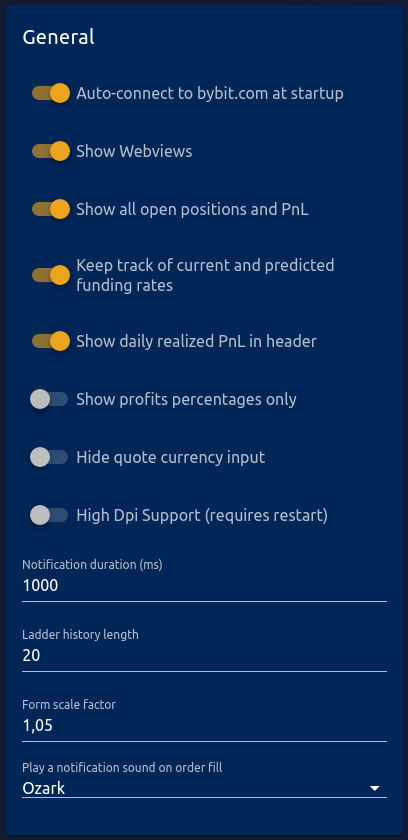
|
Auto-connect to bybit.com at startup | Will connect to the API when bybit pro starts. Disable if you need to connect to a VPN first and click on the “Init API” button once connected to your VPN |
| Show webviews | Disable to hide webview in main window | |
| Show all open positions and PnL | Disable to hide the position table at the top | |
| Keep track of current and predicted funding rates | Enable to show funding fees and time to next funding | |
| Show daily realized PnL in header | Disable to hide daily PnL in header | |
| Show profits percentages only | Enable to hide PnL coin/dollar amount and keep only percentages | |
| Hide quote currency input | Enable to hide the quote currency input (keep only the USD/USDT one) Keep in mind that USDT orders are sent in the quote currency and rounded |
|
| High Dpi Support (requires restart) | Enable if your configuration requires a high dpi support Restart bybit pro for it to take effect |
|
| Notification duration (ms) | Change notification duration | |
| Ladder history length | Change the number of saved ladders | |
| Form scale factor | Change the zoom for the order tabs forms |
¶ Limit TP
Enable Limit TP feature here, more details in the dedicated section.
¶ Move SL
Enable Move SL feature here, more details in the dedicated section.
¶ Post-Only
Default everything to Post-Only and disable buttons when price is against post-only rules.
🛈 Limit TPs are not set as post-only to avoid them being cancelled.
⚠ Disabling post-only can result in paying taker fee.
¶ Sounds
Sound on buy order fill : Select which sound Bybit pro will play on a buy order filled
Sound on sell order fill : Select which sound Bybit pro will play on a sell order filled
Queue plays : If selected, Bybit Pro will play all sounds for fills one after the other, otherwise it will stop the current if not finished, then play it again.
Add Custom Sound : Play your own notification sound on order fill
¶ Colors
Customize main Bybit Pro colors here
¶ Time Options
Bybit API needs a synchronised time to verify requests validity. Most windows systems are not correctly synced so there's an offset calculated.
Disable it if you know your computer is in sync.
Time offset smoothing : Averages latest n offset calculations, use it if your connection is not stable.
Request receive window : Time (in ms) before request becomes invalid, increase it if you get lots of timestamp errors.
¶ Websocket Reconnection Options
Ping/pong websocket settings, used to check websocket connection (orders, position, and prices real time updates).
Send ping message every : Time between each check is started.
Time to wait for pong message : Check is considered failed if time set here has passed before receiving a response from bybit.
Number of missed pongs before reconnect : Bybit pro closes and reopens the websocket connection if this number of checks have failed.
¶ Chaser
Enable chaser tab, more details in the dedicated section.
¶ Market Maker
Enable MM tab, more details in the dedicated section.
🛈 Only available for robopack members.
¶ Market
Enable market tab, more details in the dedicated section.
¶ Webhooks
Enable webhooks more details in the dedicated section.
🛈 Only available for robopack members.
Time (in ms) before automatic activation (-1 to disable) :
- Set to -1 to disable automatic actions, accept/reject actions on the popup that will be displayed on webhook reception.
- Set a time in ms if you want automations from webhooks to apply after a pre-set time, a popup will be displayed when a webhook is received, you can still reject the actions on that popup if you're actively trading.
Secret key : Secret key used to verify the trade comes from you.
⚠ Do not share your secret key with anyone, and generate a new key if you suspect it has been at risk.
¶ Instruments
Reset form data : Resets all form data for selected instrument. Use it if you suspect some data have been corrupted.
¶ Auto side
Allow bybit pro to automatically switch side on position open/close.
Example with limit auto-side enabled :
Place a buy ladder.
Once ladder is starting to fill and position is open, side input on limit is switched to sell.
Place your TP order on the sell side with limit.
When position is closed,, side input on limit is switched back to buy.
¶ Auto Reduce Only
Allow bybit pro to automatically switch reduce-only on position open/close.
Example with limit reduce-only enabled :
Place a buy ladder.
Once ladder is starting to fill and position is open, reduce-only input on limit is switched to on.
Place your TP order on the sell side with limit with reduce-only.
When position is closed, reduce-only input on limit is switched back to off.
¶ Confirm Orders
Show a confirmation popup before placing order, settable for each order type.
Size above account size before triggering confirmation is editable.
¶ Retry requests
Send request again after rate limit has been lifted.