You can use webhooks in each order form.
To use webhooks, enable them in settings. A webhook button will then appear at the top of each order type tab.
Prepare your order in the form with settings you want applied when bybit pro will receive the webhook, then click on the webhook button to show a popup where you can prepare more webhook parameters. Form data reflects the tab you are on and the data in your inputs.
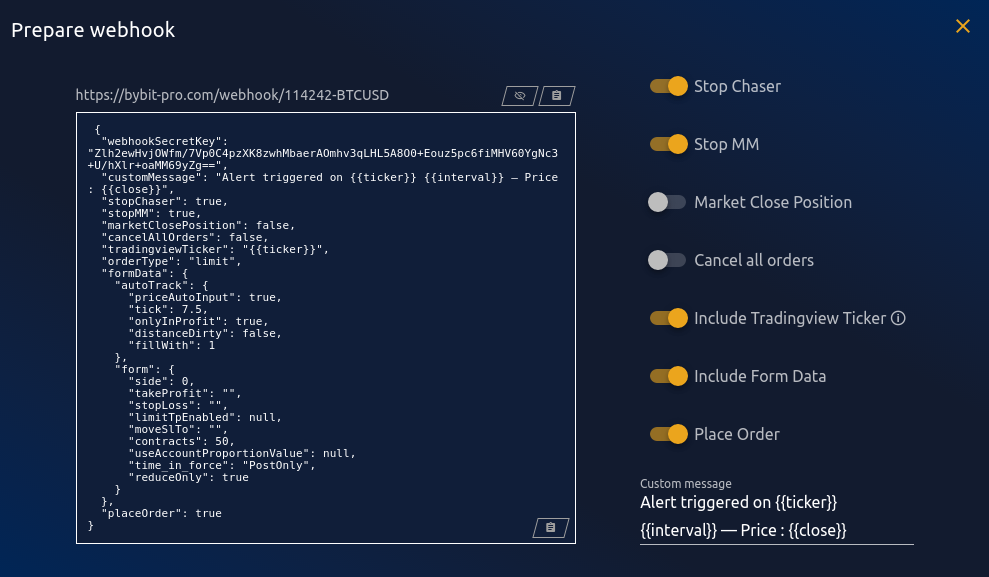
¶ Settings
| Stop Chaser | Stops chaser |
| Stop MM | Stops MM |
| Market close position | Market closes current position if open |
| Cancel all orders | Cancels all open orders (except conditional orders), similar to clicking on “Cancel All” |
| Include Tradingview Ticker | Includes a {{ticker}} placeholder that will be replaced with current ticker when tradingview sends the alert. Used to verify that the alert has been set on the correct instrument. If instrument differs, then a popup will be displayed when receiving the webhook to inform you and validate or not. Disable if you are sending webhooks from another instrument or source. |
| Include form data | Adds the current form data to the webhook, will fill the form with this data when webhook is received |
| Place Order | Places order after filling form data and calculating prices |
| Custom Message | Includes a custom message that will be displayed on the webhook popup. Default uses tradingview placeholders for ticker, interval and price. |
Actions will be realized from top to bottom, depending on their status.
¶ Using webhooks with TradingView
To trigger webhooks from tradingview, add an alert there (on price, indicator value…)
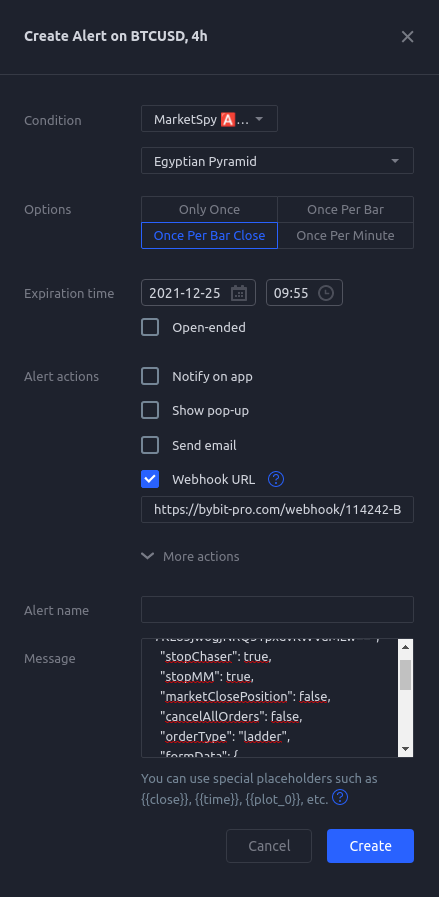
- Choose alert condition, here we will trigger the example webhook above (ladder buy 0.5x of account on a daily range) on a 4h pyramid from marketspy armageddon.
- Select when you want to trigger your webhook (bar close is usually a good choice to avoid repaints).
- Set your expiration time.
- Enable Webhook URL and pasted the URL copied in the webhook builder in the input below.
⚠ Each account and instrument will have a different URL, make sure to use the correct one - You can also enable other types of notification at the same time.
- Paste webhook data copied in the webhook builder in the Message input.
- Finally, click create.
- Make sure to let the bybit pro instance running so it can react to the incoming webhook
⚠ Do not let two instances of the same [Bybit ID - Instrument] combo running at the same time or webhook will trigger on both
¶ Receiving a webhook
When you receive a webhook, a modal will pop up on your bybit pro instance running with the account and instrument where you prepared it.
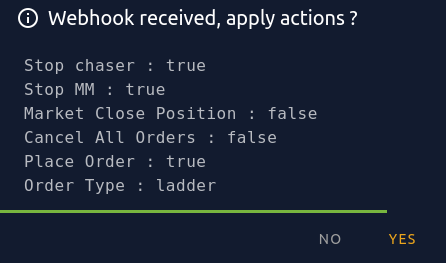
You will have n milliseconds then (n being the time you entered in settings) to cancel actions. If you do nothing, it will apply those actions at the end of the timeout.
If you set the timeout to -1, message will be kept on screen until you click on yes or no and actions will be applied or not after.